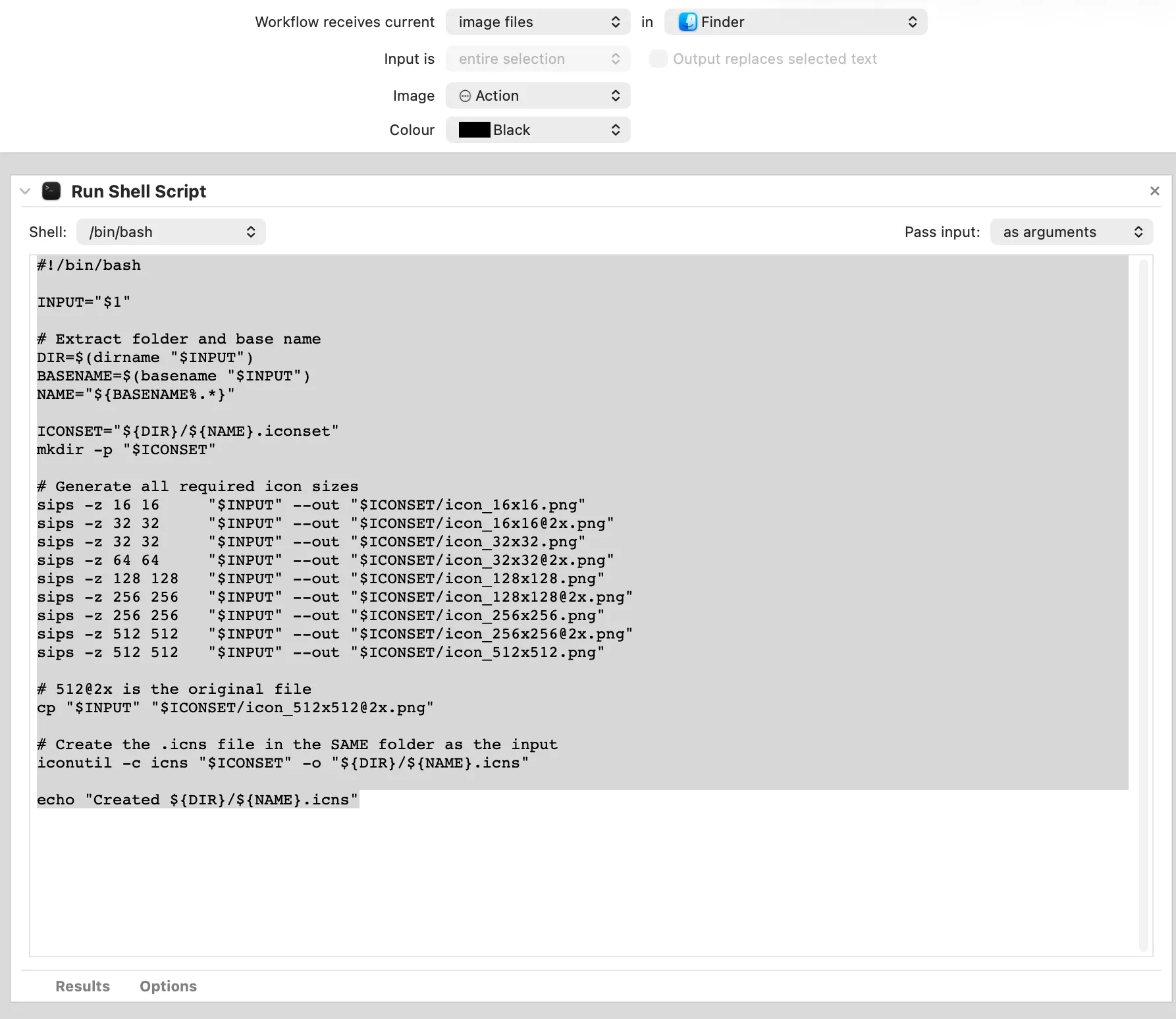
Sometimes you need to quickly create a usable ICNS file to deploy a macOS application.
An Automator script can be used to provide a Quick Action that will do the heavy lifting for you.
Once saved, you can right click on an image file, select Quick Actions -> Create ICNS from Image. A few seconds later you should have an ICNS in the same folder
#!/bin/bash

INPUT="$1"

# Extract folder and base name
DIR=$(dirname "$INPUT")
BASENAME=$(basename "$INPUT")
NAME="${BASENAME%.*}"

ICONSET="${DIR}/${NAME}.iconset"
mkdir -p "$ICONSET"

# Generate all required icon sizes
sips -z 16 16     "$INPUT" --out "$ICONSET/icon_16x16.png"
sips -z 32 32     "$INPUT" --out "$ICONSET/icon_16x16@2x.png"
sips -z 32 32     "$INPUT" --out "$ICONSET/icon_32x32.png"
sips -z 64 64     "$INPUT" --out "$ICONSET/icon_32x32@2x.png"
sips -z 128 128   "$INPUT" --out "$ICONSET/icon_128x128.png"
sips -z 256 256   "$INPUT" --out "$ICONSET/icon_128x128@2x.png"
sips -z 256 256   "$INPUT" --out "$ICONSET/icon_256x256.png"
sips -z 512 512   "$INPUT" --out "$ICONSET/icon_256x256@2x.png"
sips -z 512 512   "$INPUT" --out "$ICONSET/icon_512x512.png"
sips -z 1024 1024   "$INPUT" --out "$ICONSET/icon_512x512@2x.png"

# Create the .icns file in the SAME folder as the input
iconutil -c icns "$ICONSET" -o "${DIR}/${NAME}.icns"

echo "Created ${DIR}/${NAME}.icns"